Event Tracker enables any player to track their progress in the current Pairs or Swiss Pairs event, using the BridgePal app. It is envisaged that players will use their own phones for the Event Tracker.
First of all you need to connect to the club scoring WiFi router, either by entering the appropriate password or via a QR code which the club administrator might provide. If the warning that the Internet may not be available is displayed, click on "Always connect".
After you are connected to the WiFi, start the BridgePal app -
- If you have the app installed on your phone / tablet, simply tap on it.
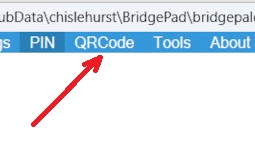
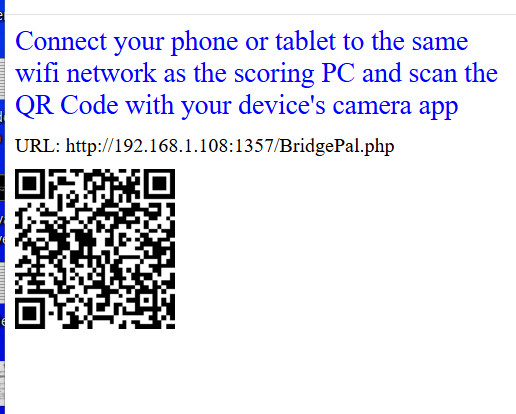
- Alternatively you can scan the QR code shown on BridgePal server. This will open the BridgePal app in the browser.
 |
>> |
 |
1. Create / Register Account/ Login
Enter your player id and a chosen pin number (four or more digits). You have to use the same ID the North registered you with at the table, i.e. you cannot use your NBO number to register at the table and your club Player ID to use the Event Tracker. However you can create two Event Tracker accounts if you wish and then always use the same Event Tracker player ID as the one you are registered at the table.
 |
>> |
 |
>> |
 |
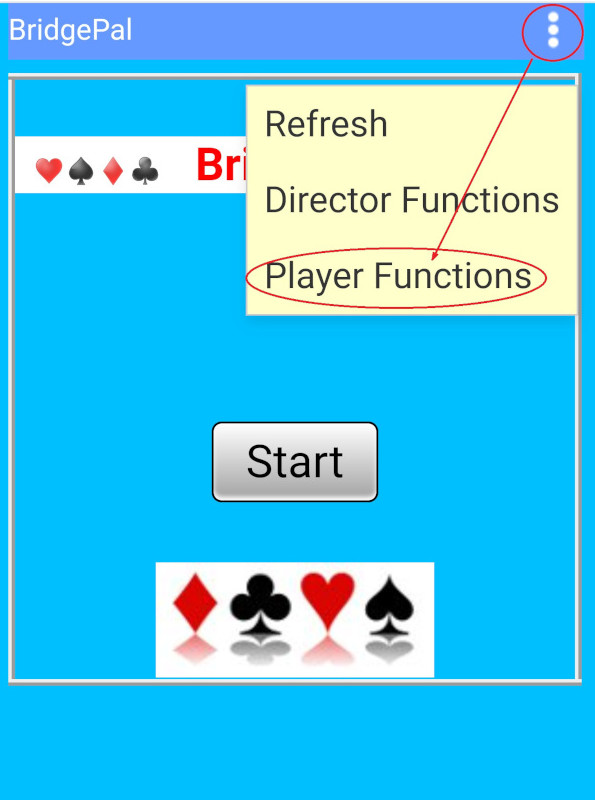
| Tap on Player Functions |
|
Tap on Event Tracker |
|
Enter your player ID and PIN, to create an account |
If the account doesn't already exist, you will be told to ask director to validate the account - via Directors Functions
Otherwise, if the account has already been registered the login will be successful, but only if the player id has already been registered in this event.
You can also log in without the pin. This will allow you to view the guide card and ranking, but not the scorecard.
2. View Guide Card, Scorecard and Ranking
The Event Tracker display has 3 tabs - Guide Card, Scorecard, and Ranking. The display associated with the current active tab is automatically updated periodically.
 |
.. |
 |
.. |
 |
| Guide Card |
|
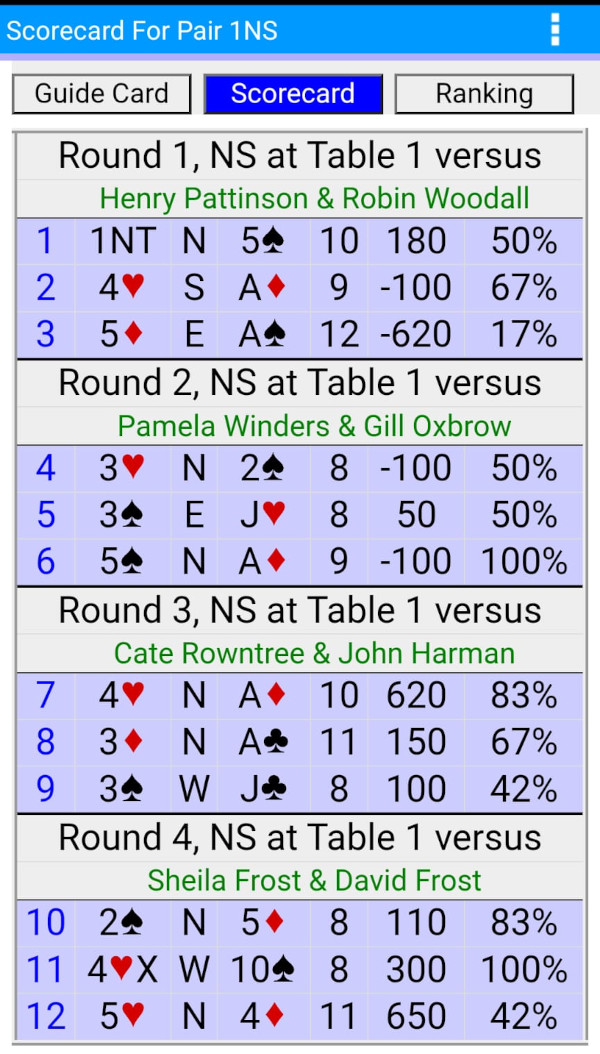
Scorecard for a finished event |
|
Ranking |
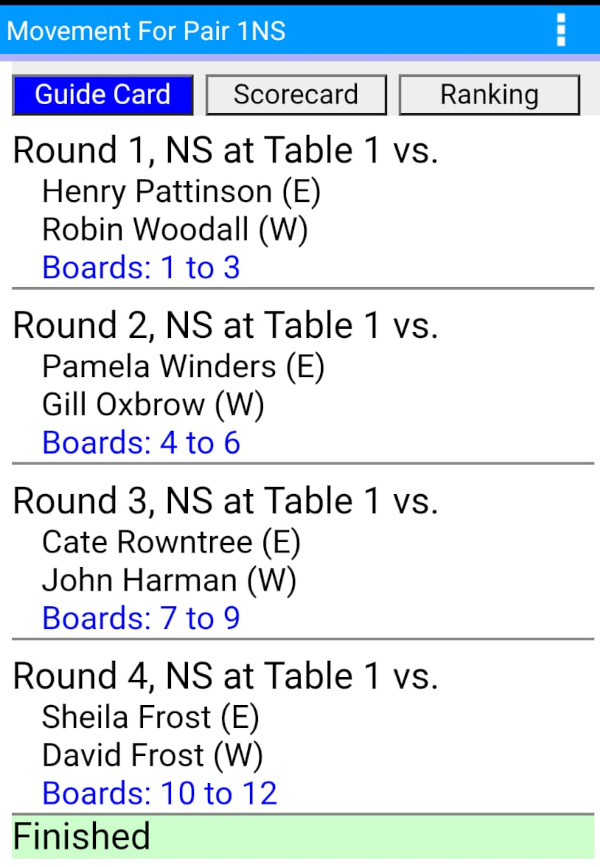
The Guide Card shows, for each round, at which table/direction the pair will be seated and the names of the opponents. It also highlights the current round
The scorecard shows the players scorecard, but only displays the percentage for boards played in the current round, for earlier rounds this field is omitted. For boards already played in the current round, tapping on the scorecard entry displays the traveller and a Hand button on the traveller allows the hand record to be viewed if it has been loaded. However, when all boards have been played, the percentage values for earlier rounds are available and travellers for boards played in earlier rounds can also be accessed.
The ranking button displays the current ranking for the event, director sets up the system setting that determines when ranking can be shown.
The data visible may be further restricted by the director's system settings for the event. The player can never see data that would not be available on the BridgePal being used to score at the table
The display associated with the current active tab is automatically updated periodically.
|