 Reset Table Reset Table |
If a player enters an incorrect table number, they will call the director. The director will use the Reset Table function on their BridgePal to reset the BridgePal to the start screen
|
|
|
|
| Acquire Table |
If a player attempts to enter their correct table number and receive an alert that it is already in use, they will call the director. You will use the Acquire Table function to disconnect the other table and allow entry of the correct table number. The player ID screen may display pre-filled numbers from the previous table; these can be edited before proceeding. However the director may wish to see the names from the other table, so OK can be selected before making edits, and the names from the other table will appear. You may wish to inform the affected players about the disconnection. They can also check this themselves by selecting Refresh in the app menu, as they will see the Welcome screen upon their next use.
|
|
|
|
| Replace Failed Unit |
This function is only available if a table number has not yet been entered on this BridgePal. It is used to take over the session of another BridgePal that has failed part-way through the session (hardware failure or battery run down). After the table number has been input and accepted the new BridgePal will resume the session that was in progress on the other BridgePal from the point of failure.
|
|
|
|
| Change Score |

This function is available at any time from Round 1 onwards. Players can themselves correct scores for a board played during the current round but director intervention is required in order to correct a score for a board played during a previous round. This function allows the director to select the board number for which the contract/score is to be entered. After inputting the PIN the BridgePal will display the contract entry screen. The director can return the unit to the North player in order to enter the data. After the contract has been entered, the score has been accepted, and OK has been tapped on the traveller the BridgePal will return to the point in the session prior to "Change Score" being selected. While the score correction sequence is in progress, various functions that are normally available are disabled. For example, North cannot tap the board number on the contract entry screen to select a different board and cannot tap the board number on the traveller screen to review the traveller for a different board.
|
|
|
|
| Award Adjustment |
 |
>>> |
 |
>>>
OK |
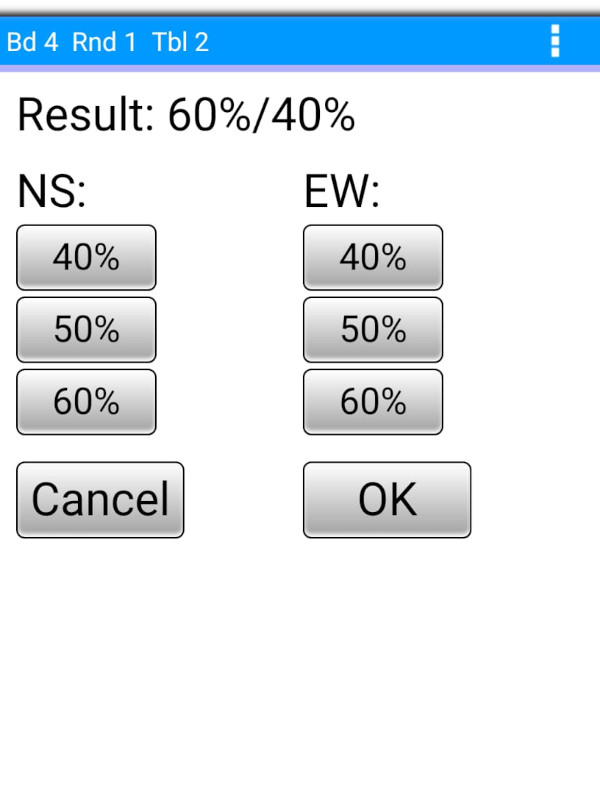
An adjustment can be entered at any time for a board which has previously been played, or for the current board if the BridgePal is currently positioned on the contract entry screen for this board. Possible adjustment values are 40%, 50%, or 60% for each direction. When the values have been entered and "OK" is pressed the Director's PIN is requested and after this a confirmation screen is displayed. However, the traveller display is not shown (in case the director is playing in the session). When OK is tapped on the confirmation screen the BridgePal will return to its previous position. However, if the adjusted score was entered for the current board the BridgePal will advance automatically to the next board or the start of the next round (if the current board was the last board of the round).
It should be noted that not all scoring programs process adjusted scores in the same way. Some process 60% as "Average+" and 40% as "Average-", whereas others just allocate 60% or 40% irrespective of the average for the NS or EW pair in this session. What this means is that, if score adjustments have been entered on BridgePal, the ranking screen at the end of the session on BridgePal may differ from the ranking as displayed by the scoring program, depending on which scoring program is being used. The latter is of course the authoritative source.
|
|
|
|
| Enter 'No Play' |
If players are not allowed to enter No Play on BridgePal (one of BridgePal Server settings) then the director has to do it, using this director's function.
|
|
|
|
| Event Tracker - Validate / Delete Account |
Event Tracker enables any player to track their progress in the current Pairs or Swiss Pairs event, using the BridgePal app.
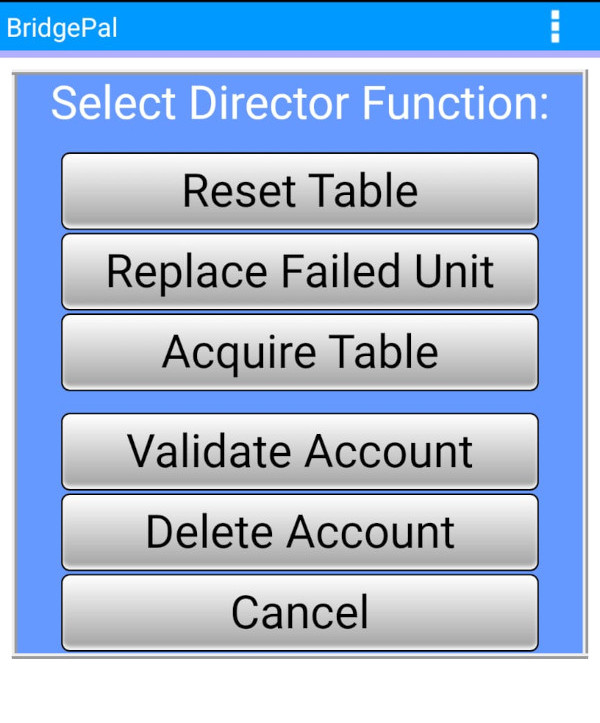
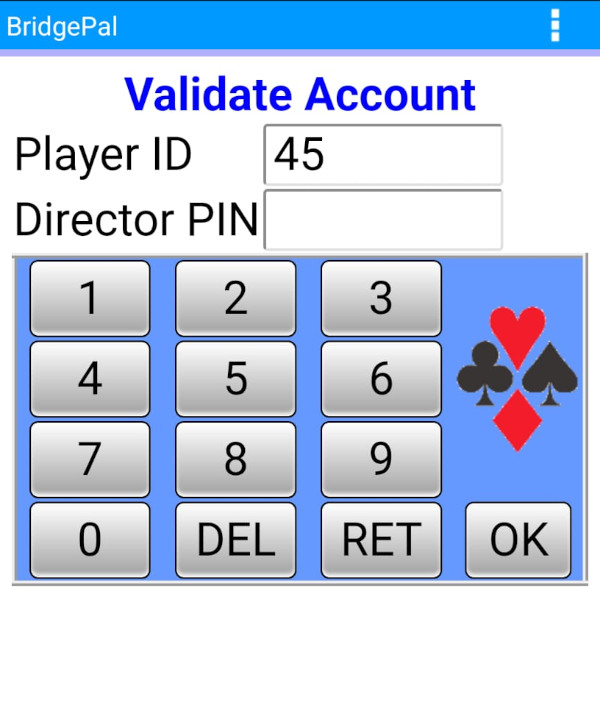
Once a player has created an account, the director has to validate it via the Validate Account directors function.
 |
>> |
 |
| |
|
|
Account information, with pins encrypted, is held in the file C:/BridgePal/xdb/accounts.csv. If a director has previously validated user accounts but wishes to completely disable player logins for a particular event it is possible to do so by renaming this file before starting the event or moving it to another folder.
|
|
|
|