 BridgePal Server Icon BridgePal Server Icon |
BridgePal server icon  is visible in the Windows taskbar when wireless scoring is running. Click on it to open the BridgePal server window and select the required menu item. is visible in the Windows taskbar when wireless scoring is running. Click on it to open the BridgePal server window and select the required menu item.
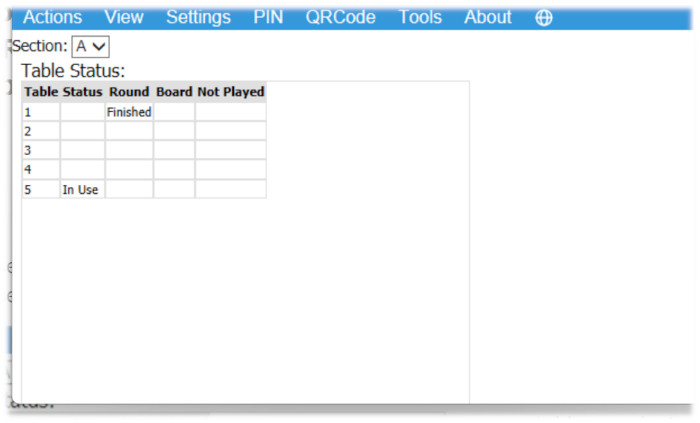
The window you see when you open BridgePal Server shows table status for the current session, including the round the table are playing, the current board and the boards outstanding to play for the current round.
|
|
|
|
| PIN |
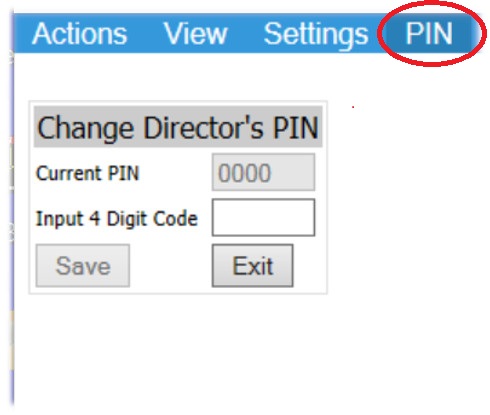
When the BridgePal software is first installed, the directors PIN is set to 0000. You can change the PIN here to something less well known.
|
|
|
|
| Settings |
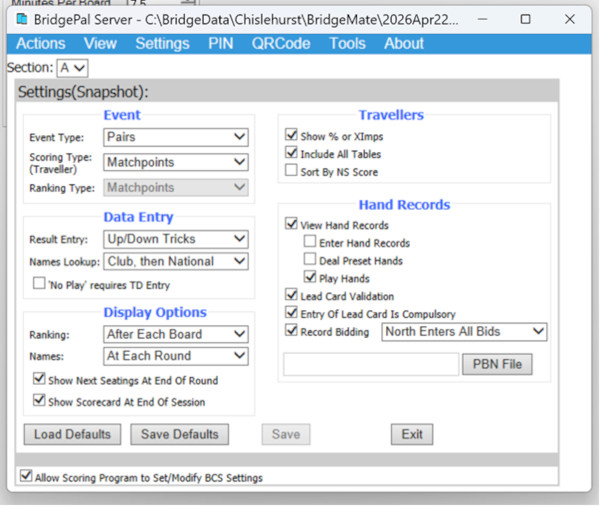
Set as desired – see detailed description below – and click on 'Save Defaults' and 'Save'. You need to click on 'Save Defaults' if you want the change to the setting to apply to all future events. You always click on 'Save' to make sure the change applies at least to the current session.
Event
- Event Type - This is usually set by the scoring program and you cannot change it. If not set by the scoring program you might have to set it when the event starts - in this case the Settings will be dispayed allowing you to modify it if necessary. The options are:
- League
- Pairs
- Teams (Multiple)
- Swiss Pairs
- Swiss Teams
- Individual
- ScoringType (Traveller) - This is usually set by the scoring program and you cannot change it. If not set by the scoring program you might have to set it when the event starts - in this case the Settings will be dispayed allowing you to modify it if necessary. By default it is set to Matchpoints. Scoring type is shown on the traveller. The options are:
- Matchpoints – result shown as percentage
- Butler (Not Displayed)
- Cross-Imps – result shown as cross-imps. If running teams, this will be the only option available.
- RankingType - This is set by the scoring program and you cannot change it. It determines the values displayed on the BridgePal ranking list. The possible options are:
- Matchpoints – result shown as percentage
- Butler (Not Displayed) – if you run Butler pairs the ranking list will have no values, so select Ranking as Not Displayed – see below. This means you can run Butler pairs using BridgePals, but the ranking will not be calculated by BridgePal. Use the scoring program scrolling screen instead.
- Cross-Imps – ranking list is in cross-imps
- Imps – results shown as IMPs – e.g. if running teams. This is the only value available if running teams.
Traveller
- Show % or Ximps - Tick to show percentage or cross-imps as defined by Scoring Type above
- Include all tables – Untick to disallow players to see results from other tables.
- Sort By NS Score – Tick to sort traveller on BridgePal by NS Score rather than by Pair number (default).
Data Entry
- Result Entry – results can be entered as number of tricks, Up/Down Tricks or American style.
- Names Lookup – The options are:
- Club Database - players can enter either their Player ID or EBU/NBO number, either will be retrieved from the local club database
- National Database - players enter their EBU/NBO number and the name is obtained from the file BMPlayerDB.mdb mentioned above
- Club, then National - players can enter either their Player ID or EBU/NBO number. If EBU/NBO number, the name is obtained from the file BMPlayerDB.mdb mentioned above.
- Names Pre-Assigned - the Enter Names screen won't be shown on BridgePal as the names will be entered by the scoring program
- 'No Play' requires TD confirmation – Confirm entry of 'No Play' by TD pin code.
Display Options
- Ranking– this controls when the 'Ranking' button is displayed. Choose as appropriate. This option is not available for BridgeScore, because it can only be controlled in BridgeScore Control Panel.
- Names– this controls whether names are shown after each round or just first round or not at all
- Show Next Seating at the End of Round – this controls whether next seatings at the end of round is shown or not. Might not be needed in Swiss Teams or Swiss Pairs.
- Show Scorecard at the End of Session – if ticked the scorecard/game summary will be shown at the end of session.
Hand Records
- View Hand Records - if ticked you will see the hands that you selected with the PBN file button below
- Enter Hand Records if ticked user can enter hands on BridgePal. BridgePal server will create a new file unless an old file is specified for editing or a new file name is specified by the scoring program. In any case the file name and the path will be specified in the PBN file field below.. If a new file is created by BridgePal server, its name will be the same name as the session bws file with the section number appended and in the same folder as the session bws file. Also see section on hand records in this guide.
- Deal Preset Hands if ticked the contract entry screen will show a 'Deal' button. Note that PBN file has to be loaded (see below) and BridgeDealer app installed.
- Play Hands - if ticked the 'Play' button will be displayed on BridgePal traveller screen and the user will be able to play the hand, provided that Bridge Solver is installed.
- Lead Card Validation - if ticked the lead card will be validated using known hand record and declarer. Very useful in detecting not just a wrong lead card but if a contract has been entered in the wrong direction (e.g. NS instead of EW) or a board has been fouled. You need to select the PBN File for this option to work.
- Entry of Lead Card is Compulsory – Tick to force BridgePal users to enter the lead card. Otherwise they can skip over the Lead Card field on the score entry screen by clicking OK.
- Record Bidding - If ticked, the 'Bidding' button will be displayed on BridgePal contract entry screen and the user will be able to enter bidding. There are several options
1. North Enters All Bids
2. All Bid round the table (use own phones) – all players around the table bid using their phones, which they take from table to table. This requires E,S,W players to be logged into Event Tracker (log in with or without pin).
3. North Selects Entry Mode – either 1 or 2. North chooses which mode is used on a board by board basis.
4. Use Stationary Tablets – bidding is done on the tablets which stay on the table. This type of bidding has to be used on all tables where bidding is recorded, i.e. no other types of bidding (1 or 2) are allowed in the same time.
- PBN File – if you want to load a pbn file with a hand records in it, browse for the relevant pbn file. When Enter Hand Records is ticked, this field will show the path to an existing or newly created pbn file. The name of newly created file can be provided by the scoring program or is created by BridgePal server - see above in 'Enter Hand Records'. Make sure that the PBN file is not located on OneDrive (BridgePal Server won't be able to find it). Also, if you are going to enter / record hands the PBN file should not be located in the top level C:/ directory (because it's not writable by BridgePal).
Load Defaults / Save Defaults
The current settings can be saved as defaults for future sessions. There is one set of defaults per event type (Pairs, Teams, Swiss Pairs, etc). When the 'Save Defaults' button is clicked the current settings will be saved as the defaults for the current event type. Similarly, if the 'Load Settings' button is clicked, the current settings will be replaced by the defaults for the current event type. If changes are required for the current session only, then after changing the settings on the screen click on the 'Save' button, rather than 'Save Defaults'.
Note also that when BridgePal Server is launched by the scoring program for a new event these defaults are applied selectively. It is likely that the scoring program provides setting for some of the fields on the above screen. If so, the settings for those particular fields are accepted from the scoring program and the remainder are initialised from the BridgePal Server defaults for the above event type. If the scoring program does not initialise the event type it will be necessary to use the dropdown list under the Event heading on the above screen to select the correct event type. When this is done, any settings which were not initialised by the scoring program will be initialised from the defaults for the new event type.
If you find this too complicated – see the next item...
Allow Scoring Program to Set/Modify BCS Settings
Users may find it simpler to make all settings changes in BridgePal server rather than in the scoring program. This can be achieved by clearing the checkbox 'Allow Scoring Program to Set/Modify BCS Settings' and clicking on 'Save'. This is a global setting and will take effect for subsequent sessions for all event types.
|
|
|
|
| Actions Menu |
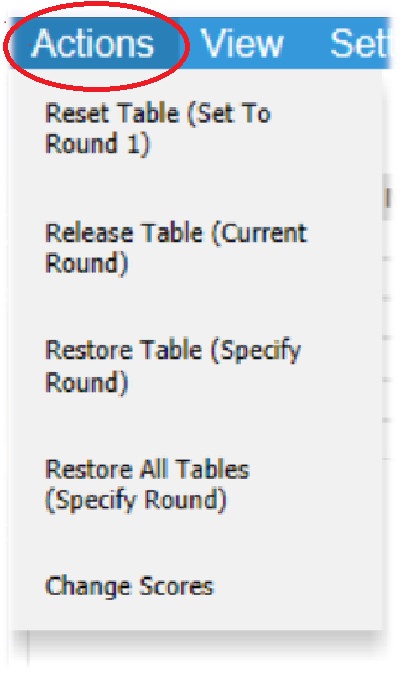
- Reset Table - this is the same as Director's function "Reset Table" - it resets the table to round 1. The BridgePal is moved to Enter Table screen.
- Release Table - it releases / detaches BridgePal from the table. For testing purposes?
- Restore Table - restores/ moves/ repositiones the table to a specified round. This could be forwards or backwards, ie from round 1 to round 4 or from round 5 to round 2. Any scores entered so far are not affected. When the table moves to an earlier round, the scores entered previously will eventually be overwritten.
- Restore All Tables - it moves all tables to a specified round.
- Change Scores - it lets director change any score entered so far at any table. It doesn't allow scores to be entered for boards that haven't been played yet.
|
|
|
|
| View Menu |
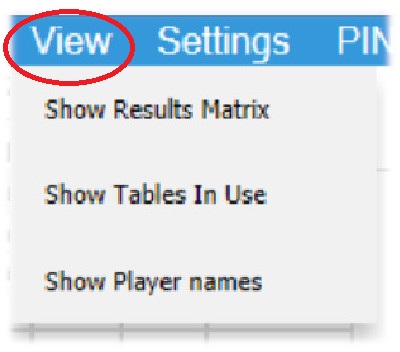
- Show Results Matrix - displays the results for each board and table
- Show Table Status - as the default display
- Show Player Names - player names (and Player ID) for each table and each direction
|
|
|
|
| Tools |
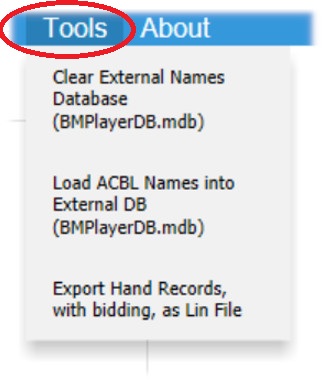
- Clear External Names Database - BridgePal Server re-initialises the external DB file BMPlayerDB.mdb,
- Load ACBL Names into External DB - If ACBLScore is the scoring program, BridgePal Server loads the PlayerNames table automatically from the ACBLScore PLAYERN.DAT file. If there are more than 10,000 names in the file, BridgePal Server will prompt to load the names into the external BMPlayerDB.mdb file instead. This menu function will load the BMPlayerDB.mdb file from ACBLScore's PLAYERN.DAT file. I don't know guys why it doesn't clear it first, and you need another function above to do this. Maybe there is a reason for it.
- Export Hand Records, with bidding, as Lin File - See "Publishing Bidding" for an explanation on how to use this function.
|
|
|
|
| QR Code |
 |
>> |
 |
| |
|
|
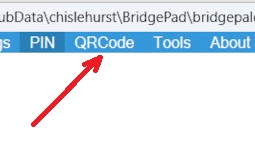
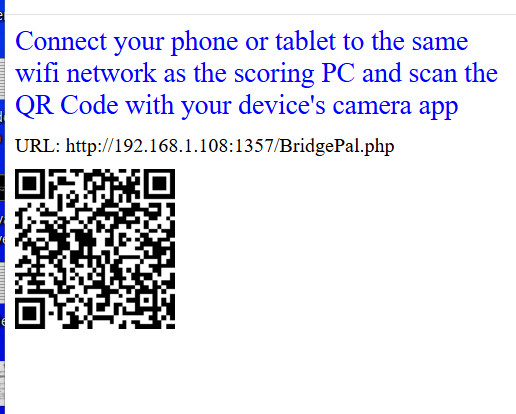
This is used to run BridgePal app in the browser on any device, in particular iPhone and iPad. You need to connect the device to the scoring WiFi first and then scan the QR code above to start BridgePal app in the browser. On an android device you don't need to install the BridgePal app from the Google Playstore in this case.
To scan the QR code use the camera on your phone or tablet. If the link doesn't show when you use camera, see if there is a QR code scanner option on the camera app menu. On older phones / tablets you might need to install a QRcode scanner.
When you connect to the WiFi network, you might get a warning that there is no Internet connection. You need to acknowledge this somehow - it varies from device to device what you need to do.
|
|
|
|
| About |
This shows BridgePal Server version number
|
|
|
|
| Language |
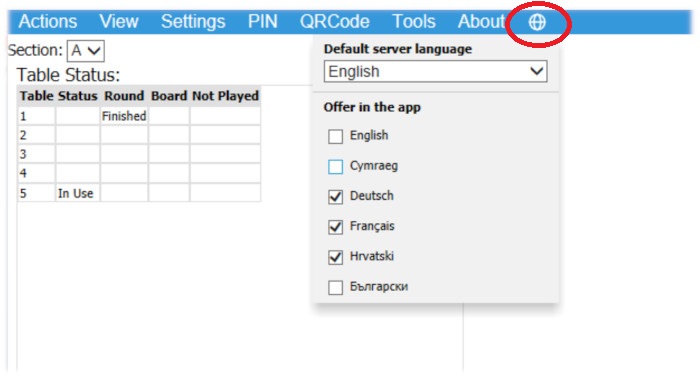
Click on the globe to select default server language. Also tick the boxes to select the languages the users are offered to select on BridgePal. If none is ticked, they all use the default server language. This allows users at different tables to use different languages if so desired.
|
|
|
|