This page demonstrates how to setup BridgePal Server with intention of showing the auction later on Bridgewebs.
1. Set up BridgePal Server
Director should setup BridgePal Server to enable entry of bidding on BridgePals. BridgePal server icon  is visible in the taskbar when wireless scoring is running. Click on it to open the server window and select Settings. is visible in the taskbar when wireless scoring is running. Click on it to open the server window and select Settings.
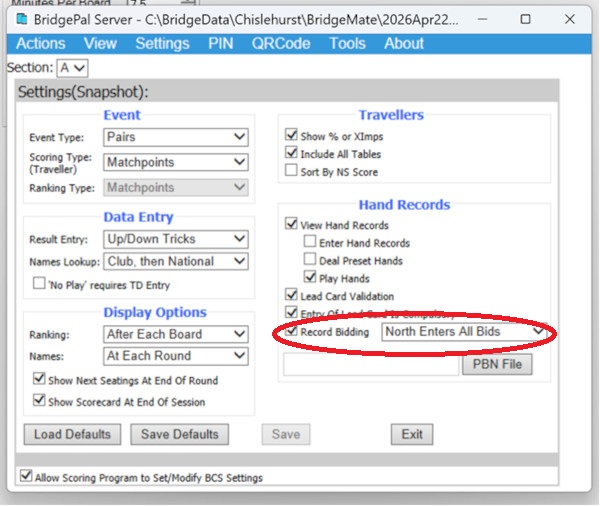
Tick 'Record bidding', click on Save to save for this session and Save as Defaults to save the setting for all future sessions, then click on Exit. This will cause the 'Bid' button to be displayed on BridgePals.
2. Assuming the scoring program is BridgeScore, after the session has completed, create an XML file from Results screen and upload it to Bridgewebs. Play button is shown on the traveller where the bidding was entered.

Click on 'Play' and Bridge Solver window is displayed showing the bidding entered on BridgePal.

3. Scoring Programs other than BridgeScore do not have this capability built in at the moment. However, it is still possible to include bidding information in the XML file by using the following procedure:
1. Create an event using the scoring program and launch BridgePal wireless scoring.
2. On the BridgePal Server Settings screen enable "Record Bidding" and save settings as above. This causes Bidding button to be displayed on BridgePal contract entry screen.
3. Now bidding may optionally be recorded for any board from the contract entry screen on BridgePal.
4. At the end of the session click on "Export Hand Records, with bidding, as Lin file" on the BridgePal Server Tools menu.

5. Generate an XML file for the event from the scoring program.
6. In BBOtoXML import the XML file and then use "Import Deal" to import the Lin file created above.
7. Click on "Save As CSV" then go back to main screen of BBOtoXML.
8. Create a new XML from the CSV created above.
9. The new XML file will contain a LIN_DATA field containing the bidding for any traveller line for which bidding was recorded.
10. Upload the XML and PBN files for the event to Bridgewebs.
|