 Contract Entry Validation Contract Entry Validation |
If contract entry validation is enabled in the scoring program or in BridgePal Server (as Entry Validation or Lead Card Validation), user is alerted to possible errors in contract entry when the traveller screen is displayed. These checks cannot detect all errors, and also may sometimes produce an alert when the entered contract was in fact correct. However, the message is a prompt to the user to double check that the contract was entered correctly. The user should tap on the OK button on the overlaid alert message box in order to dismiss the message. They can then tap on the "Edit" button if necessary in order to go back and correct the contract entry for this board.
Also it is possible that misboarding occured - so, if everything else seems OK, check the hand record against the cards in the board!!
There are three types of validation checks made:
 |
A check is made to see whether the lead card entered is consistent with the Declarer. If not it will be reported as below. This is a definite error unless the wrong PBN file for this session was selected in the scoring program, or a previously entered hand record for this board is incorrect (if using manual hand entry). |
 |
Another check is made to see whether the specified suit seems reasonable for the specified declarer. If the makeable contracts information for this board indicates that the defenders could make 9 or more tricks in this suit then it is considered probable that either the declarer or the suit is incorrect. Of course, this cannot be stated for certain. this message is displayed. |
 |
Can be either ..... to be completed |
|
|
|
|
| View / Display Hand Record |
The hand record and makeable contracts (if available) are displayed after the hand has been played at the table. Tap the "Hand" button on the traveller screen and you will see a display like the one below. The "Play" and "Edit" buttons will only be visible if those functions have been enabled for this event from the scoring program or in BridgePal server. If no makeable contracts are available then "*" characters will be displayed in the makeable contracts table.

When makeable contracts table or optimum contract is not available, there is an "Analyse" button displayed to calculate makeable contracts and "Calc optimum contract" to calculate optimum contract.
|
|
|
|
|
|
| Hand Entry using BridgeDealer |
Entry of the hand records using BridgeDealer is intended for recording hand records that are manually shuffled at the table. This automatically creates the PBN file. It is an alternative to manual entry above.
Make sure BridgeDealer it is installed on BridgePal – see Scoring Unit Setup on BridgePal website.
To enable hand entry tick Enter Hand Records in the scoring program or BridgePal server Settings screen. The path to the PBN file will be different if ticked in the scoring program or in BridgePal server. In either case you will have to look into BridgePal server Settings screen to find the path for the PBN file.
The cards must be presented for reading in a specific order - this is all 13 cards from the North hand first, then all the East cards on top of those, all the South cards and all the West cards.
You can read any board via Player Functions menu on the BridgePal device. Select 'Read Board' followed by the board number. This can be used by somebody at the sitout table.
 |
Read> |
 |
>>> |
 |
>>> |
 |
|
| Click on 'Player Functions' on 3 dot menu |
|
After 'Read Board' is clicked - choose board 2. Board 1 is green as it is already saved in the PBN file
|
|
The cards must be presented for reading in a specific order - see above
|
|
All North cards are read, then East etc. At the end the message "Finished. Tap back key to return" is displayed, which then saves the board
|
|
Alternatively you can read current board via the 'View Hand Record', then "Edit" as above under Manual Entry of Hand Records.
 |
Edit> |
 |
Read Cards> |
|
>>> |
|
|
| After click on 'Hand' on traveller the view hand record is displayed |
|
After 'Edit' is clicked - choose Manual or BridgeDealer (Read Cards) |
|
The cards must be presented for reading in a specific order - see above |
|
All North cards are read, then East etc. At the end the message "Finished. Tap back key to return" is displayed, which then saves the board |
|
|
|
|
|
| Deal Preset Hands with BridgeDealer |
Make sure BridgeDealer is installed on BridgePal – see Scoring Unit Setup on BridgePal website.
You need to generate a PBN file first using a random deal generator. For example, download the Dealer4 PC software from www.dealer4.com, This software is for the Dealer4 dealing machine, but you can use it for creating a PBN file of random deals even if you don't have the dealing machine. The software is free of charge.
In BridgeScore you can load the PBN file for an event via the Hand Records menu item in the Wireless Options event menu. In other scoring programs there is another way perhaps ('Import Deal' in EBUScore for example). However, the easiest way is probably to load the PBN file via BridgePal Server Settings page.
If you want to deal the boards from BridgePal you need to tick the 'Deal Preset Hands' checkbox on the BridgePal Server settings page, after starting the event from the scoring program. Providing that you have the BridgeDealer app installed on BridgePals you will then see a 'Deal' button on the contract entry screen for a board. If you click on this button it will transfer control directly to the BridgeDealer app to deal that particular board. After the board has been dealt use the Back key on the scoring unit (if there is one) to exit BridgeDealer and return to the contract entry screen of the BridgePal app. If the scoring unit does not have a back key then a right to left swipe gesture should have the same effect.
You can also deal any board at any time after wireless scoring has been started via the Player Functions menu on the BridgePal device, select 'Deal Board' followed by the board number. It is envisaged that this can be used by somebody at the sitout table.
Because the BridgeDealer app uses the front camera of the tablet and reads the pack from underneath, the players can't see the cards while the board is being dealt.
|
|
|
|
| Playing a Hand |
This feature, if enabled from the scoring program or BridgePal server, is accessed via a "Play" button on the "View Hand Record" screen. Clicking on the "Play" button will launch the Bridge Solver app on an Android device. If BridgePal is running from a browser, 'Play' will launch Bridge Solver in a new window, producing a display like the one below:
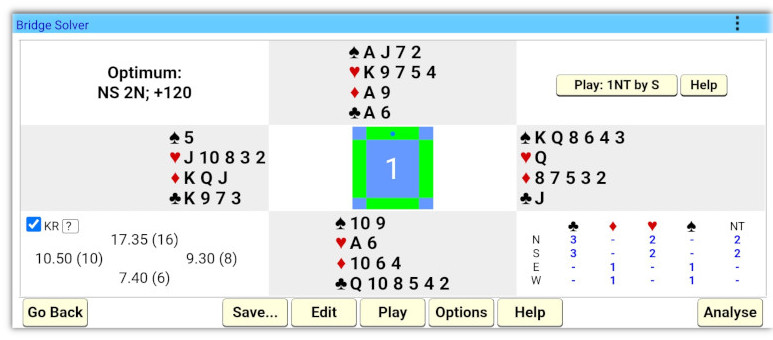
The button near the top right shows the contract entered on the traveller at this table. Clicking on the button will start playing that particular contract in double dummy mode, with card by card guidance, after the hand has been played at the table.

Of course, in a club bridge session there would not normally be time to play through the hand in Bridge Solver. However, it is often useful just to look at the effect of various opening leads. In the above screenshot the actual lead made at the table is indicated by a blue asterisk on the card button. Each lead card has a subscript which shows the maximum number of tricks that can be made by the defenders if that card is played and the declarer and defenders make optimal choices subsequently. The cards with a green background are the optimal choices at each step. In this particular example it can be seen that an optimal lead card was played at the table.
The context sensitive "Help" button in the Bridge Solver app provides more information about how to use the app and the options available. When the user has finished using Bridge Solver, tapping on the "Go Back" button (bottom left of the Bridge Solver display) will return to the View Hand Record screen.
|
|
|
|