1. Start New Round
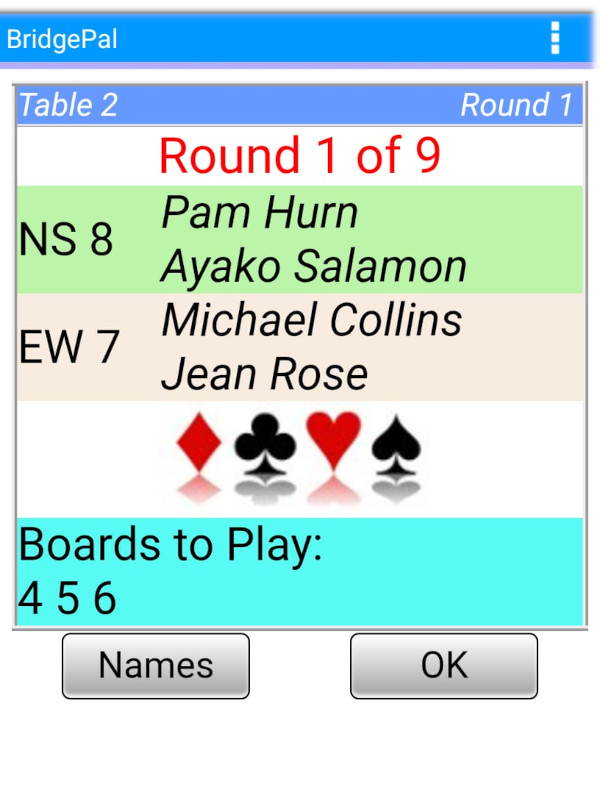
This screen is shown at the beginning of every round. Here you can have another look at player names and correct anything that needs to be put right.
Tapping on OK moves to the contract entry screen for the first board of the round (unless the Select Board box is displayed first)
2. Select Board (optional)
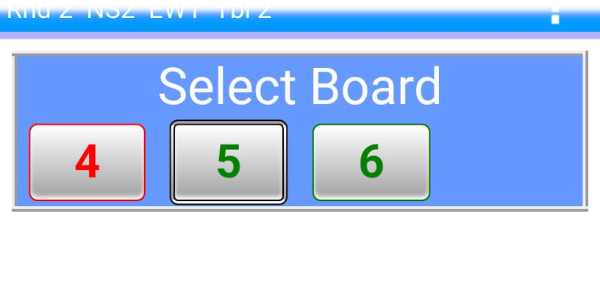 When the movement requires boards to be shared with another table then the Select Board box is displayed first allowing you to select the board number for contract entry. In this example, board 4 has already been played, but not boards 5 and 6. You would only select board 4 if you wanted to correct it. When the movement requires boards to be shared with another table then the Select Board box is displayed first allowing you to select the board number for contract entry. In this example, board 4 has already been played, but not boards 5 and 6. You would only select board 4 if you wanted to correct it.
3. Enter Contract
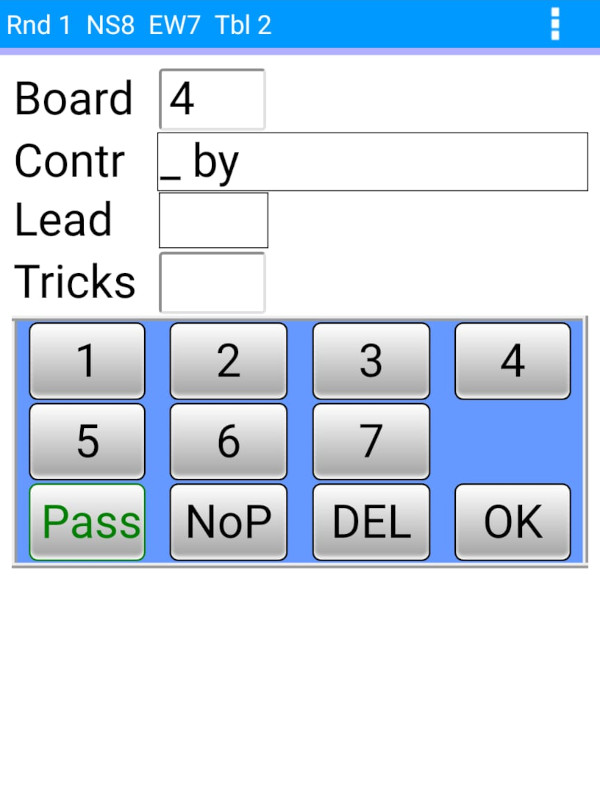
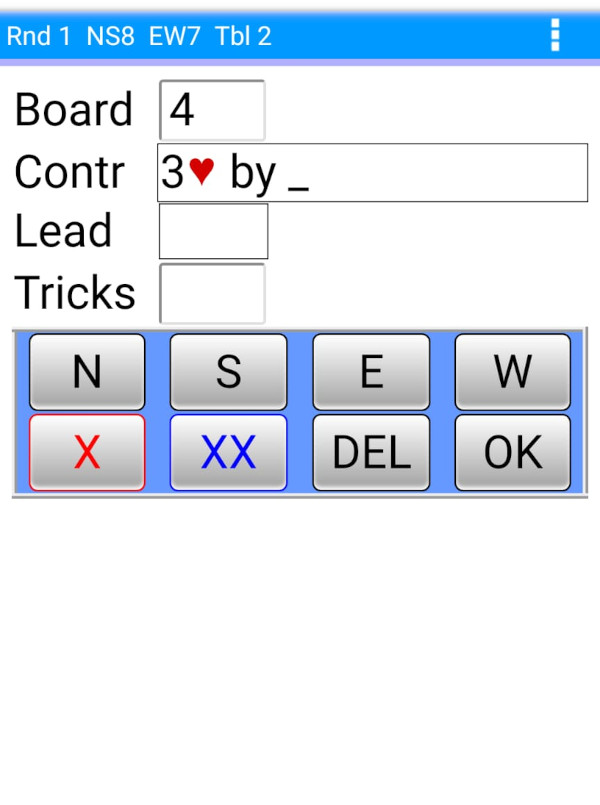
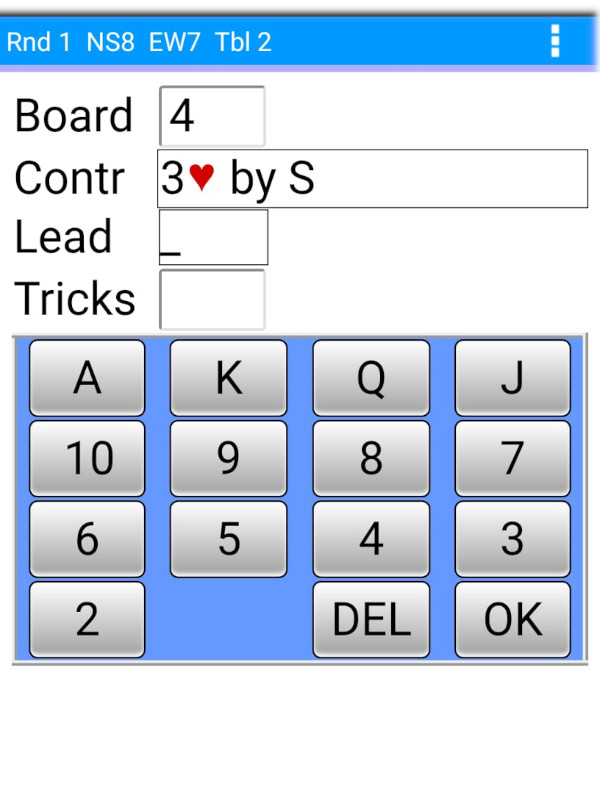
Enter contract screen has a dynamic keyboard which adapts to player input. This increases speed and accuracy of input. So for example it only requires 6-7 keystrokes / taps to enter the contract, lead and no of tricks. Screen is not cluttered with unnecessary information and the keys required at any one time are always at hand and easy to find. Also because of this screens easily fit on small mobile devices as well as larger tablets.
Note that tapping on the board number allows you to select a different board from the same round. This can be either a board you have already played (you might want to correct it) or a board you haven’t played yet. This is useful if the boards are played out of order.
 |
>>> |
 |
>>> |
 |
>>> |
| Enter contract level |
|
Enter contract suit |
|
Enter contract declarer |
|
4. Enter Lead
| >>> |
 |
>>> |
 |
>>> |
| |
Enter lead value |
|
Enter lead suit |
|
Enter lead card if it is compulsory. Otherwise skip over it by tapping OK.
6. Accept Score
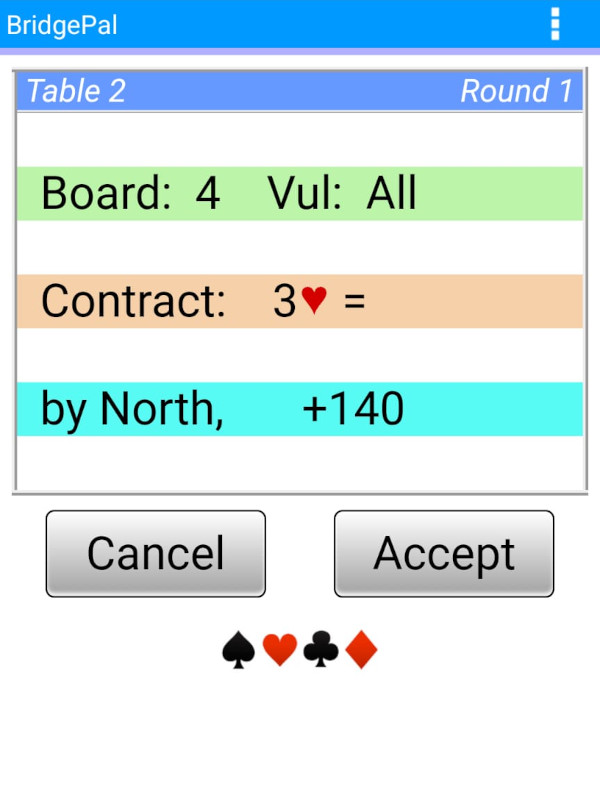
You need to show this screen to the opponents. If they are happy with what you entered, they will tap on Accept. If something needs correcting, they will tap on Cancel and this will take you back to contract entry screen.
Accept will take you to the traveller screen
7. View Traveller
 |
 |
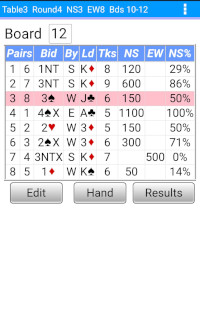 |
| Traveller |
Traveller with Ranking |
Traveller with Results |
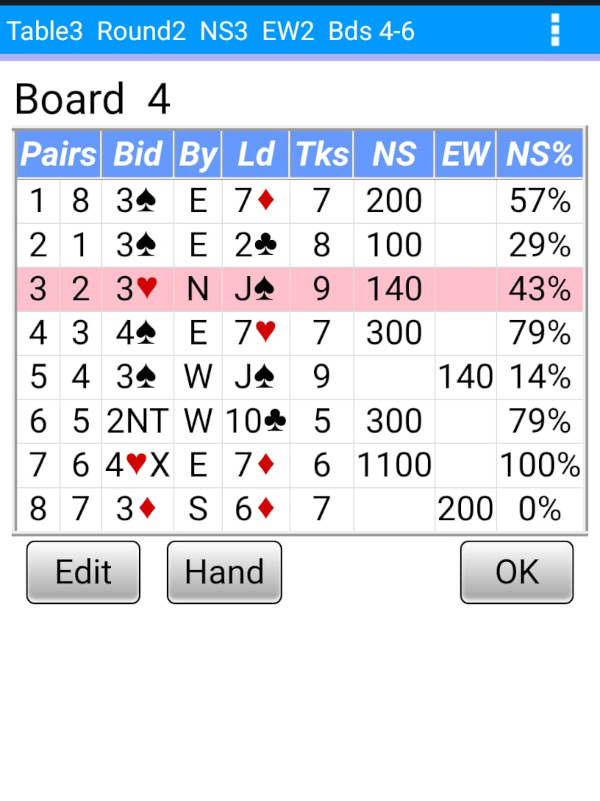
If "Entry Validation" has been enabled in the scoring program or BridgePal server an alert message may appear if a possible error is detected. In this case tap the "Edit" key to change a contract, lead card or the result that has been incorrectly entered.
The "Hand" button will only appear if options relating to hand records have been set in the scoring program or BridgePal server. These features are described in the Hand Records Section.
Tap on the board number at the top left of the traveller screen to view the traveller for a different board from the current round. You can only do this providing the board has already been played.
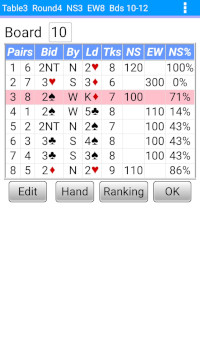
If "Ranking At End of Round" is chosen in BridgePal server Settings or scoring program, then the "Ranking" button will be displayed between the "Hand" button" and "OK" at the end of every round.
Once you click on OK, this will take you to the next board in the round, para 2 above.
However once all boards in the round have been played, OK will take you to the next screen below..
When the session has finished, the OK button is replaced with a "Results" button which leads to the Results screen and next section..
8. Move to the Next Round
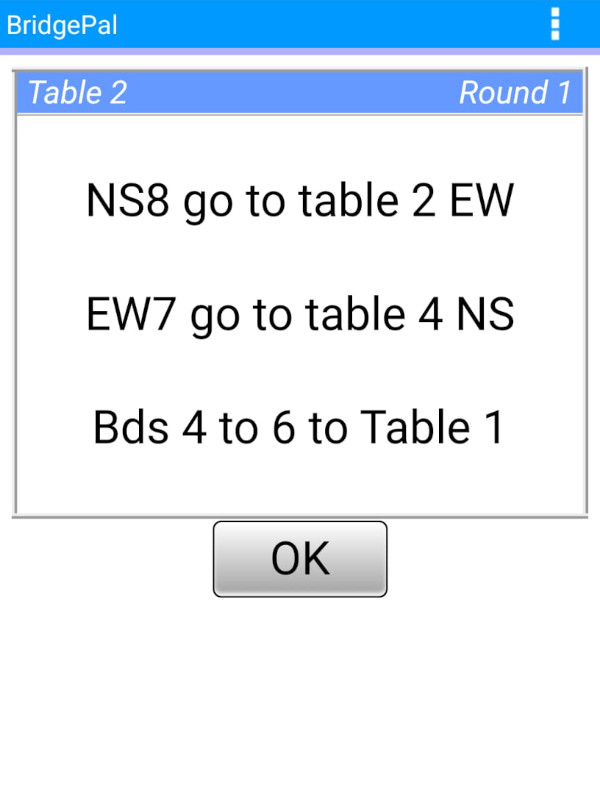
Opponents leave the table here and the new round starts - para 1 above.
|